Build in-demand skills with a full year of Coursera Plus, now $239. Save now.
What Is Jupyter Notebook? A Beginner's Guide for Data Scientists
Learn about the ways you can use Jupyter Notebook as a data scientist, how to install it, and some tips to get you navigating the possibilities within it.
![[Featured Image] Two learners discuss the uses of Jupyter Notebook, an application ideal for data science and popular among AI and machine learning programmers.](https://d3njjcbhbojbot.cloudfront.net/api/utilities/v1/imageproxy/https://images.ctfassets.net/wp1lcwdav1p1/2NVgJgCboD6UXD65P6EZ7r/651e4bf00210afd880bc7fda7f3811be/GettyImages-168308052-converted-from-jpg.webp?w=1500&h=680&q=60&fit=fill&f=faces&fm=jpg&fl=progressive&auto=format%2Ccompress&dpr=1&w=1000)
Key takeaways
Jupyter Notebook is a web-based application that allows you to create, share, and document your code across multiple platforms.
Jupyter Notebook lets you combine live code, equations, visualizations, and written documentation in a shareable computation document.
Jupyter Notebook supports more than 40 programming languages and is commonly used for data analysis, scientific research, visualization, and machine learning.
Discover more about Jupyter Notebook, the various ways you can use it, how to install it, and some tips to help you get started.
If you're ready to start building in-demand data science skills, try the IBM Data Science Professional Certificate. In just four months, you'll have the opportunity to learn about the everyday data science tasks and the tools used, like Python, SQL, and Jupyter.
What is Jupyter Notebook?
Jupyter Notebook is a web-based application popular in data science and machine learning that you can use to record, create, and share computational documents like live code, equations, and visualizations. You can save your notebook as an.ipynb file, which stores your code, cells, output, and other data from your Jupyter notebook session on your computer.
It offers an interactive environment that enables artificial intelligence (AI) and data professionals to experiment, test hypotheses, and enjoy rapid feedback loops and iteration. Jupyter Notebook combines visual and written documentation, enabling you to write code, edit it, and explain your actions and results in the same document. When working with large programs, you can split them up into small bits of code, each housed in its own cell within the notebook, while retaining the context of all other cells in the same document.
Jupyter Notebook is free and open-source software that got its name from the three original languages it supported: Julia, Python, and R. Today, it supports over 40 programming languages, including the original three, as well as Java, Scala, MATLAB, and more. Project Jupyter, a non-profit open-source team, maintains it, with its entire source code available for review on GitHub.
With Jupyter Notebook, you can share notebooks across multiple platforms; create interactive outputs with HTML, LaTeX, or other multimedia; and leverage other big data tools. The ability to share, record, and view Jupyter notebooks makes them useful across data science, the physical sciences, mathematics, research, and machine learning.
Is Jupyter Notebook an IDE?
Jupyter Notebook functions similarly to an integrated development environment (IDE), and some consider it one, but it lacks features typically associated with IDEs. While Jupyter notebooks excel at one-time data processing, analysis, and visualization across various programming languages, they lack the robust auto-completion characteristic of IDEs, advanced debugging tools, and workflows for complex projects.
Popular Python IDEs like Spyder and PyCharm allow you to use a Jupyter notebook within the IDE, making use of both platforms, if needed.
What is Jupyter Notebook used for?
Those in the fields of scientific research, data analysis, visualization, and machine learning use Jupyter Notebook to create and search for information through the highly shareable platform. Some key features of Jupyter Notebook that make it useful for these fields include:
LaTeX syntax: The implementation of LaTeX syntax in Jupyter notebooks allows mathematicians and physicists to easily write and document equations.
Extensive language support: Support for over 40 programming languages, such as Python, Julia, R, and Scala, enables researchers to collaborate across languages.
Showing your work: With Jupyter Notebook, coding happens in different cells, so you can see how your work runs step-by-step and even run single cells to see how each part of your code operates.
Data visualizations: Jupyter Notebook uses Python's data visualization libraries, such as Matplotlib, Seaborn, and Plotly, to easily generate graphs and charts in your notebook.
Real-time interaction: Teams can view and interact with a notebook simultaneously and add comments directly in the notebook with JupyterHub and Google Colab.
Multimodal presentation: Notebooks let you include text in Markdown, embed video, photos, and widgets, and code in the same notebook, simplifying the presentation for stakeholders.
Is Jupyter Notebook for beginners?
Yes, if you are a beginner looking to develop skills in data analysis, data science, and machine learning, Jupyter Notebook may suit your needs, as it excels at these tasks. Since Jupyter Notebook consolidates all data and code into one place, it helps data scientists process and present findings across platforms. This allows beginners and experienced developers to streamline workflows with analysis, visualizations, and code on a single platform.

How to install Jupyter Notebook to get started
For detailed instructions from the Jupyter Project on how to install Jupyter Notebook, you can view their installation page: Project Jupyter: Installing Jupyter. You can install Jupyter Notebook using multiple methods, depending on your operating system and coding environment.
Install using pip
If you already use Python and have it installed, you can use the Python Package Index to install Jupyter Notebook using pip. To install Jupyter Notebook, run this command in your terminal:
pip install notebook
Install using Homebrew on macOS
If you use Homebrew on MacOS to manage packages and installations from the terminal, you can install Jupyter Notebook with the following command:
brew install jupyterlab
Install using Anaconda
Anaconda is an open-source Python package and environment manager that includes Jupyter. If you prefer to use a graphical user interface (GUI) to manage distributions and packages, then you can download Anaconda from its website. Once you register, you can choose the download for your operating system to begin.
After your installation, open Anaconda Navigator, find the Jupyter button, and select "launch." Anaconda will automatically launch a Jupyter Notebook in your browser window.
Read more: Jupyter vs. Zeppelin: What's The Difference?
How to open Jupyter Notebook from the terminal
After installing Jupyter Notebook, you can open it from the terminal using the following command:
jupyter notebook
This will provide information about your notebook server, then launch the Jupyter Notebook dashboard in your default web browser. From there, you can create a new notebook to begin.
Why do so many AI programmers use Jupyter Notebook?
Artificial intelligence (AI) and machine learning programmers use Jupyter Notebook for its ability to explore raw data with Python libraries such as NumPy, Pandas, Matplotlib, and scikit-learn. You can use cell functions in Jupyter Notebook to visualize, clean, and sort data, preparing it for machine learning while seeing each step in the process. As you train the model, you and your collaborators can see each cell's output throughout the process, allowing you to correct mistakes and run tests in real time.
How to use Jupyter Notebook: The basics
Now that you have Jupyter installed on your machine, you can start exploring some of the basics. Note that if you want to try Jupyter Notebook without downloading it to your computer, you can use Jupyter's free online version called Jupyter Lite. You can start using Jupyter Lite by visiting Project Jupyter’s Try Jupyter page.
1. Starting Jupyter Notebook
As noted, you can start a Jupyter Notebook from the command line, using the Anaconda Navigator, or directly from an integrated development environment (IDE) like PyCharm or Spyder. To open it from the terminal, run the command:
jupyter notebook
Doing so, or starting any other instance of Jupyter Notebook, brings you to the Notebook Dashboard, where you'll see other notebooks, directories, and files in the server from which you started it, which is likely your home directory on your machine.
2. Creating a notebook
Once you are in the Jupyter Notebook dashboard, you can create your first notebook by selecting the New Notebook button in the top right:
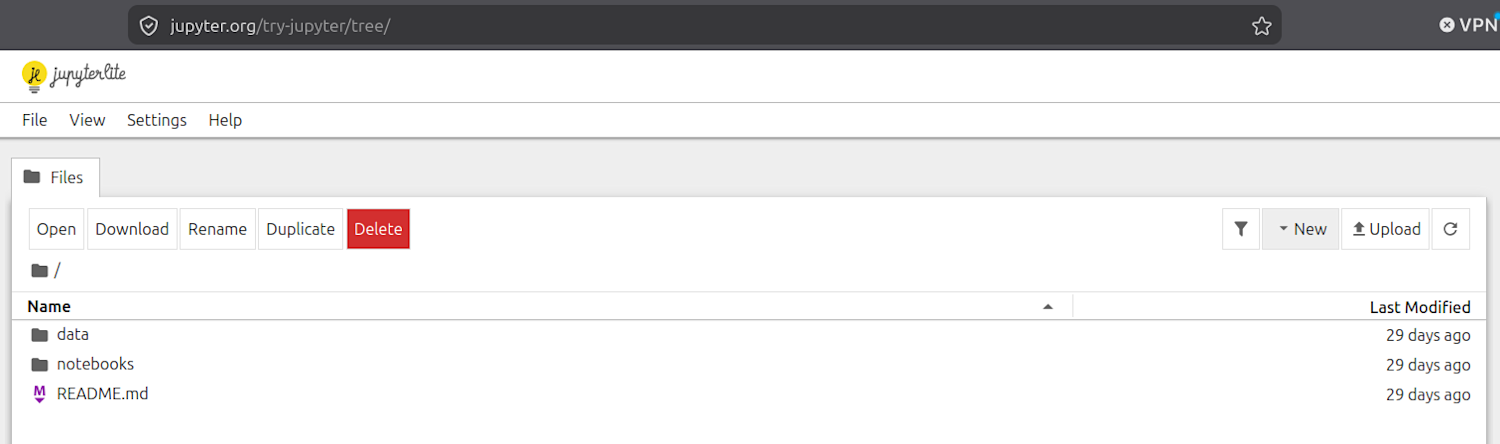
You can also open a notebook by navigating to File in the top left, selecting the dropdown, and clicking New > Notebook if you are in an existing notebook.
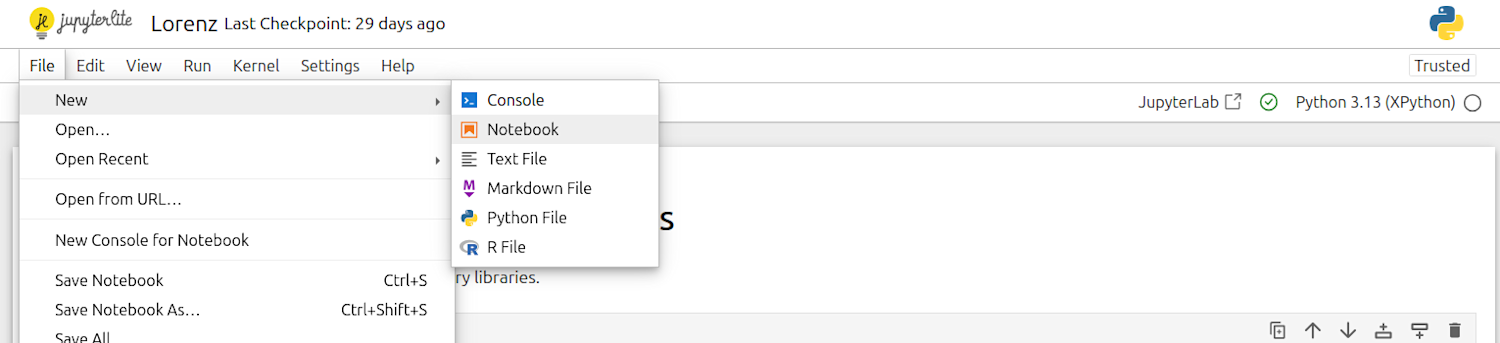
Then name your notebook and select the language kernel you want to use; in this case, Python. Name your notebook at the top of the page, and you're ready to start using it.
3. Working with your notebook
To work with your notebook in Jupyter, you can start by understanding each cell type:
Code: Allows you to write code with tab completion and syntax in the language kernel you selected. These cells have both the input and the output of the code underneath the cell, which could be text, a graph, etc.
Markdown: Allows you to make headings, bold, italicize, create lists, and more
Raw: Allows you to write an output that the notebook does not further compute
You can select the cell you want to use at the top of the page using the dropdown at the top of the page.
This is what each cell type looks like when run:
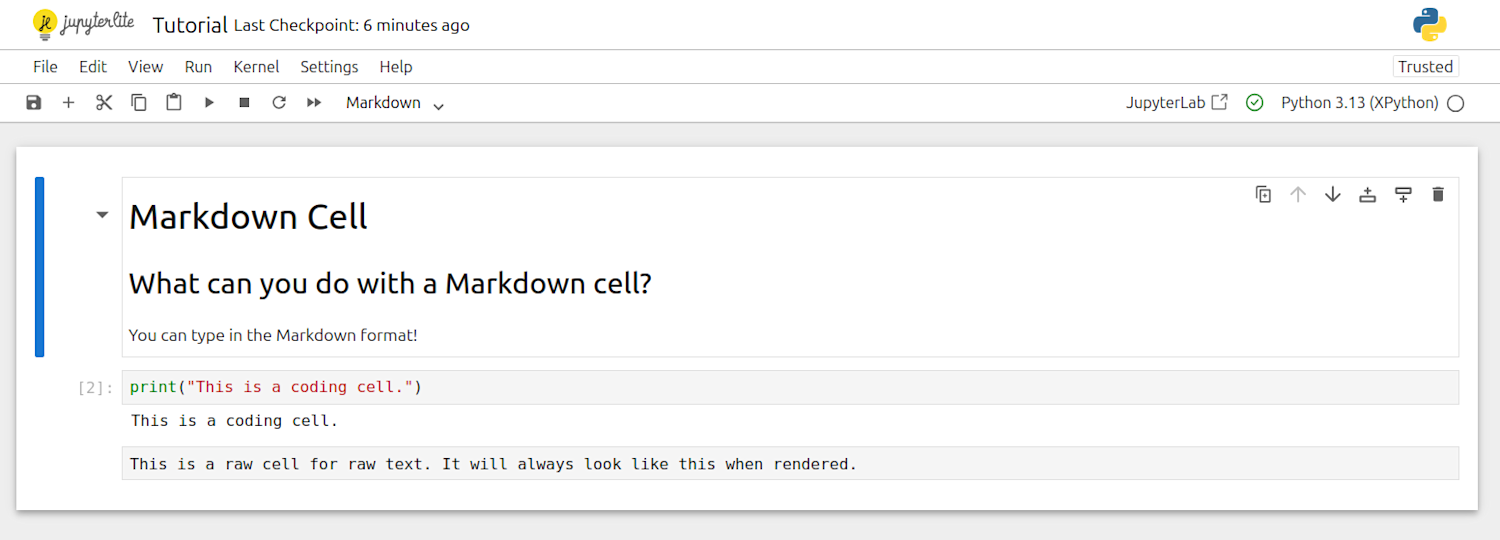
When working with a notebook, you can update and run cells in real time. If you wanted to change the input of the Python cell to "Hello, Coursera!"
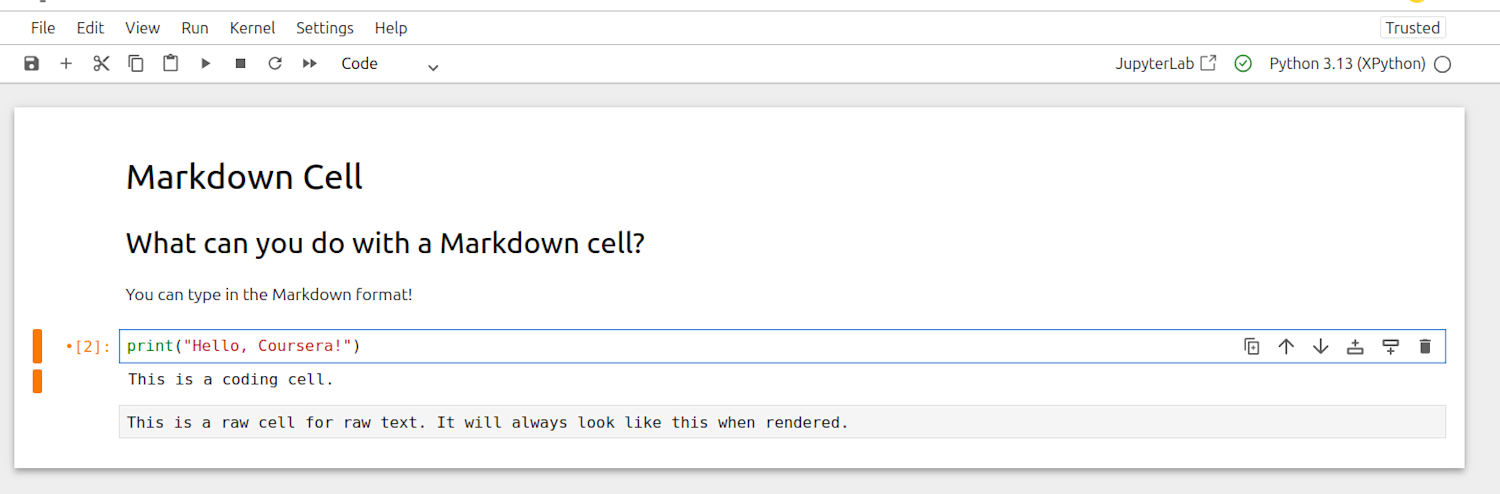
Then, you can run just that cell using Ctrl + Enter to run only that cell and nothing else:
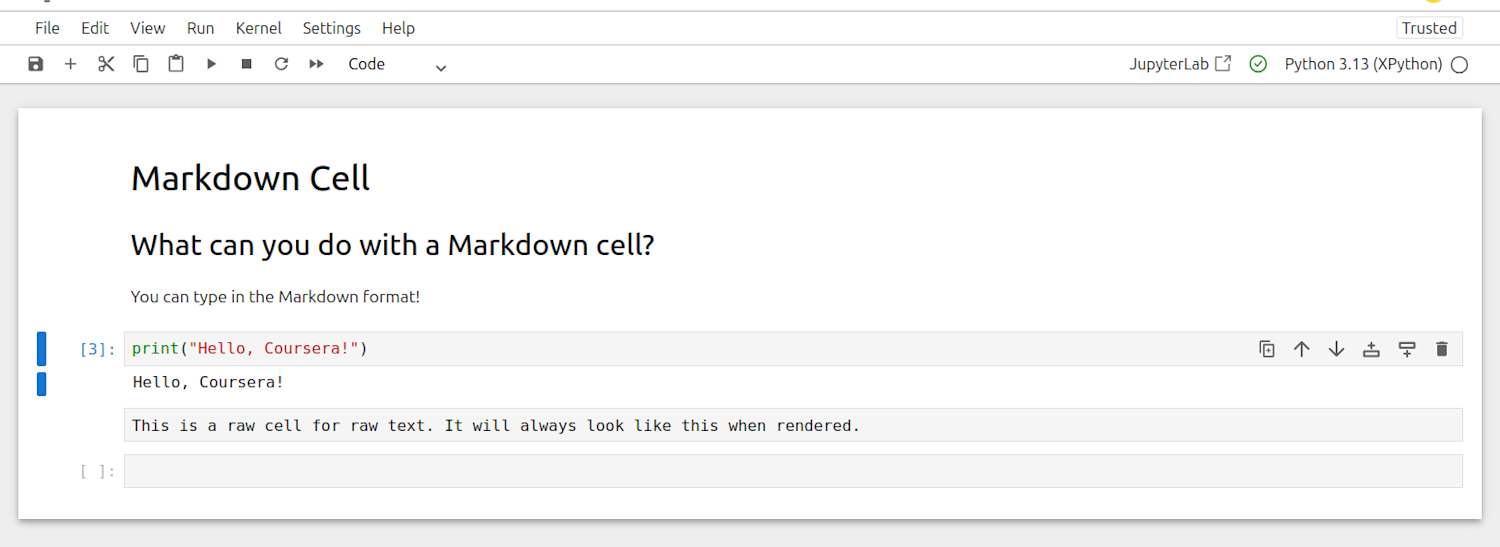
With these steps, you can start experimenting as a beginner with Jupyter Notebooks to run code, create visualizations, and explore data.
Beginner tips
If you are new to Jupyter Notebook and you want to see everything you can do with the jupyter command, run jupyter --help from your terminal to see a list of information and sub-commands. Some additional tips to help you navigate notebooks and other aspects of programming in Jupyter include the following:
In Jupyter, kernels are programming-language-specific processes that allow you to interact with the Jupyter application interfaces. The most commonly used is ipykernel, which lets you compute in Jupyter with Python, but you can switch kernels to use a different language.
To open a Jupyter Notebook directly from the terminal, navigate to the directory where it is located in your terminal and then run the command:
jupyter notebook name-of-your-notebook.ipynb.
Jupyter Notebook, while built with Python and often associated with it, allows you to use many different kinds of kernels, which you can view on the GitHub Jupyter kernels page. For example, if you work as a data scientist, you may have an interest in the R and Julia kernels.
If you would like to further explore how running cells and creating graphs work in Jupyter Notebook, you can view an example of the Lorenz system of equations online.
Explore our free resources for data professionals
Explore career paths, assess your skills, and connect with resume guidance while browsing our Career Resource Hub. If you want to learn more about data science, check out these free resources:
Watch on YouTube: 7 Must-Have Skills for Becoming a Data Science Rockstar
Bookmark for later: Data Science Terminology and Definitions
Hear from an expert: 6 Questions with an IBM Data Scientist and AI Engineer
Accelerate your career growth with a Coursera Plus subscription. When you enroll in either the monthly or annual option, you’ll get access to over 10,000 courses.


Keep reading
- April 10, 2026
- September 21, 2026
- July 6, 2026
- November 26, 2025
- June 27, 2026
- January 12, 2026
Coursera Staff
Editorial Team
Coursera’s editorial team is comprised of highly experienced professional editors, writers, and fact...
This content has been made available for informational purposes only. Learners are advised to conduct additional research to ensure that courses and other credentials pursued meet their personal, professional, and financial goals.